How to Set Recording Levels on an Audio Recorder
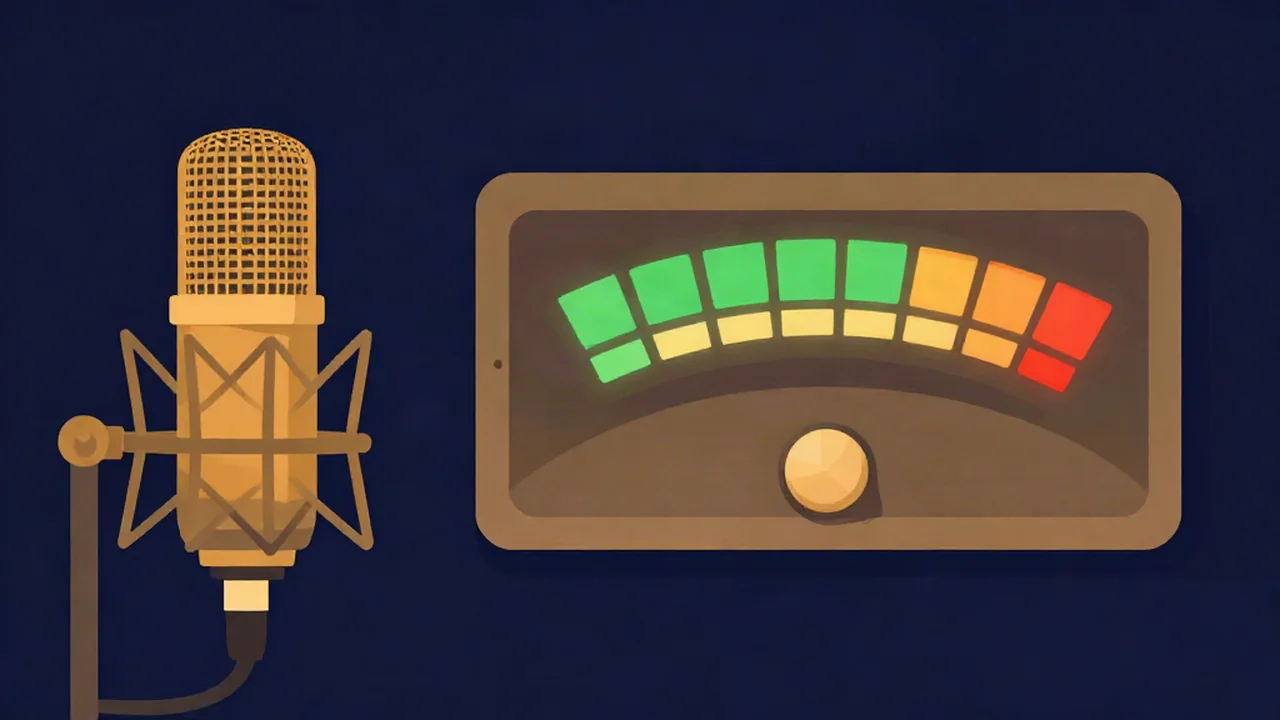
To set recording levels on an online Audio Recorder, adjust your input so the loudest moments of your take peak somewhere around -12 to -6 dBFS and never reach 0. You do that before pressing Record: rehearse the loudest part, adjust the gain at your operating system or audio interface, make a short test take, and listen back. It takes about five minutes, and it decides whether the recording you keep is clean or permanently distorted.
This guide covers the capture stage only, using the free online voice recorder on Vocal Cut. Raising a finished file to a target loudness comes afterwards.
What you'll need
- A microphone: built-in, headset, USB mic, or a mic plugged into an audio interface.
- A current browser. The recorder runs on a secure (https) page and asks permission before it touches your mic.
- Headphones for listening back. Laptop speakers hide distortion and hiss.
- The loudest thing you plan to say, sing or play, ready to rehearse.
Nothing gets installed and there is no account. Recording happens in your browser, and your audio never leaves your device.
Why levels matter at the capture stage
Every recording sits between two limits. At the bottom is the noise floor: the hiss of the mic, the preamp and the room. At the top is 0 dBFS, the ceiling of digital audio, where the system runs out of numbers. The space between your loudest moment and that ceiling is your headroom. The two limits are not equally forgiving.
If the input is too hot, the loudest moments go past 0 dBFS and their tops are flattened. That is clipping, and it is baked into the file. Turning the file down later only gives you a quieter version of the same distortion, because the missing part of the waveform was never captured.
If the input is a little quiet, nothing is broken. A take that peaks at -15 dBFS over a low background can be raised afterwards, and digital recording leaves plenty of room below the ceiling before noise becomes a problem. So when you have to choose, a quiet but clean take beats a loud but clipped one.
The -12 to -6 dBFS peak target is a common working rule for that reason, and many engineers aim a little lower still. It keeps your speech or music well above the noise floor, and it leaves 6 dB or more of headroom for the laugh, the hard consonant or the chorus you sang harder than in rehearsal. What Is Gain Staging? explains how this first stage fits into the rest of the chain.
Know what your meters actually show
The level bar on the Audio Recorder is an activity indicator. It is a green-to-amber bar driven by your average level, and it confirms that sound is arriving and roughly how hard. It has no numbers and no clip light, so treat it as a sanity check, not as the place you read -12 dBFS from.
Mic Test gives you a number. Its "Input level" readout shows your level in dB on a scale from -60 to 0, with a thin line that holds your recent maximum. That number is also an average (RMS-style) reading, though, not a sample-peak meter. The peaks in speech and singing run well above that average, roughly 10 to 18 dB higher on a short-window reading like this one, and more on hard consonants. LUFS vs RMS vs dBFS Explained covers why those scales differ. So use the meter to get close, then confirm with your ears and a test take.
How to set levels on the Audio Recorder, step by step
Run Mic Test first. Open Mic Test, press "Test my microphone" and allow access. Check the Device line names the mic you mean to use, and read the "Browser processing" line. It tells you whether echo cancellation, noise suppression and auto gain are active.
Rehearse your loudest part. Not your average sentence: the loudest line, the big note, the laugh. Do it at the distance you will actually record from. Watch the Input level number and the peak-hold line. As a rule of thumb, the loudest part should read somewhere around -30 to -20 dB, ideally near -26 to -22. If the number climbs above that, or the peak-hold line runs toward the right-hand end, your real peaks are probably close to the ceiling.
Adjust the gain where it really lives. The recorder has no gain knob of its own, so the input level is set outside the browser:
- On Windows 11: Settings, then System, then Sound. Under Input, select your microphone and adjust Input volume.
- On macOS: System Settings, then Sound, then Input. Choose your mic and drag the Input volume slider.
- With an audio interface or a mic with a gain knob, use that knob first and leave the OS slider at a sensible fixed position. On some USB interfaces the macOS slider is greyed out, which is your cue that the knob is the only control.
Turn down if the loud part pushes the meter near the top. Turn up if normal speech barely moves it.
Open the online voice recorder. Go to the Audio Recorder, press "Enable microphone" and allow access. Pick the same mic from the "Input" dropdown. You can only change the input before recording starts, so do it now.
Make a 15-second test take. Press the red "Record" button, perform your loudest section plus a little of your normal level, then press "Stop". The take appears under "Recording ready" with a player.
Listen back on headphones. Listen for crackle or harshness on the loudest words, which means clipping, and for hiss under the quiet parts, which means the level is too low or the room is noisy. For a visual check, download the WAV and open it in the Audio Cutter. Peaks that run flat into the top and bottom of the waveform view are clipped, and How to Avoid Clipping on an Audio Recorder walks through the causes and fixes.
Adjust and repeat once if needed. One correction usually does it. Then record the real take without touching the gain mid-way.
Setting levels for different sources
The target stays the same. What changes is how far your loudest moment sits above your normal one.
Spoken voice and podcasts
Speech is the easy case. Set the level on the most animated sentence you expect to say, not on a calm read. Laughter is the usual surprise, so a rehearsal that includes one is worth doing. Keep the same distance from the mic throughout, because leaning in raises the level just as turning up the gain does. Mic Placement for Clean Voice Recordings covers how to pick that distance and angle. For the full chain from this voice recorder to a published episode, see How to Record and Edit a Podcast Online Free.
Singing
Singers have the widest gap between verse and chorus. Set the level on the loudest held note of the loudest chorus, then accept that the quiet verses will look small on the meter. That is the right trade, and leaning back from the mic on big notes helps too. How to Record a Cover Song walks through a full vocal session.
Instruments and loud sources
Drums, brass, amps and loud acoustic guitar can be loud enough to overload the mic or its preamp before the digital stage ever clips. If a take distorts while the meter looks moderate, move the mic further away or use a pad switch if your mic or interface has one (often -10 to -20 dB), rather than only lowering the software level. Turning down a signal that already distorted in the preamp just gives you quieter distortion.
Troubleshooting
The meter barely moves. Check that the right device is selected, that the mic or headset mute switch is off, and that the OS input volume isn't near zero. If the bar stays still on every device, work through Microphone Not Working? How to Fix It.
The level jumps around on its own. That is usually automatic gain control. Chrome, Firefox and Safari all switch it on by default when a page asks for a microphone without extra settings. It raises the level in pauses and pulls it down when you get loud, which makes steady levels hard to set and can make background noise swell between phrases. The recorder doesn't offer a toggle for it, so check Mic Test's "Browser processing" line to see whether auto gain is active. Then set the OS or interface level sensibly so it has less to correct, and judge the result from a test take rather than the moving meter.
It distorts even at a moderate level. The overload is happening before the browser: the mic is too close to a loud source, or the interface gain is too high while the OS slider is turned down to compensate. Lower the gain at the first stage, the interface knob, and bring the OS slider back up.
There is hiss when you turn it up. Raising gain lifts the noise floor along with your voice. Move closer to the mic instead of adding more gain, cut noise sources in the room, and accept a slightly quieter clean take. A light pass in the Noise Reducer can handle steady hiss afterwards.
What to do after the take
A recording that peaks around -12 dBFS will sound quieter than finished audio, and that is expected. Bring it up to a consistent loudness with the Volume Normalizer, which targets LUFS while keeping peaks in check. How to Make Quiet Audio Louder (No Clipping) covers the options in more depth. If the room left a constant background hum or hiss, clean it with the Noise Reducer before you normalize, so the noise isn't raised along with your voice.
Frequently asked questions
What level should I record vocals at?
Aim for the loudest moments of the vocal to peak around -12 to -6 dBFS, with nothing reaching 0 dBFS. That range sits well above the noise floor and leaves headroom for notes or words louder than you rehearsed. Set the level on your loudest section, not your average one. A take that ends up a little quieter can be raised later without harm.
Is it better to record too quiet or too loud?
Too quiet is the safer mistake. A clean take that peaks low can be raised afterwards with normalization, and modern recording leaves plenty of room above the noise floor. A take that clipped has the distortion permanently recorded, and turning it down later only makes the distortion quieter. When unsure, leave more headroom rather than less.
How do I change the input volume for an online voice recorder?
A browser-based recorder uses the level your system provides, so change it outside the browser. On Windows, open Sound settings and adjust the input device's volume slider. On a Mac, open System Settings, then Sound, then Input, and move the Input volume slider. With an audio interface or a mic that has a gain knob, set that knob first.
Why does my recording level keep going up and down by itself?
That is usually automatic gain control, a browser or system feature that raises quiet passages and lowers loud ones on the fly. It makes steady levels hard to set and can make background noise swell during pauses. Check whether it is active with a mic test tool that reports browser processing, set your input level sensibly, and judge from a test recording.
Can I fix a clipped recording afterwards?
Not perfectly. Clipping flattens the tops of the waveform, so the information that was cut off was never recorded. Dedicated de-clip tools rebuild an estimate of the missing shape, sometimes convincingly, but it is a reconstruction rather than the original. The dependable fix is to lower the input level and record the take again.