How to Record and Edit a Podcast Online Free
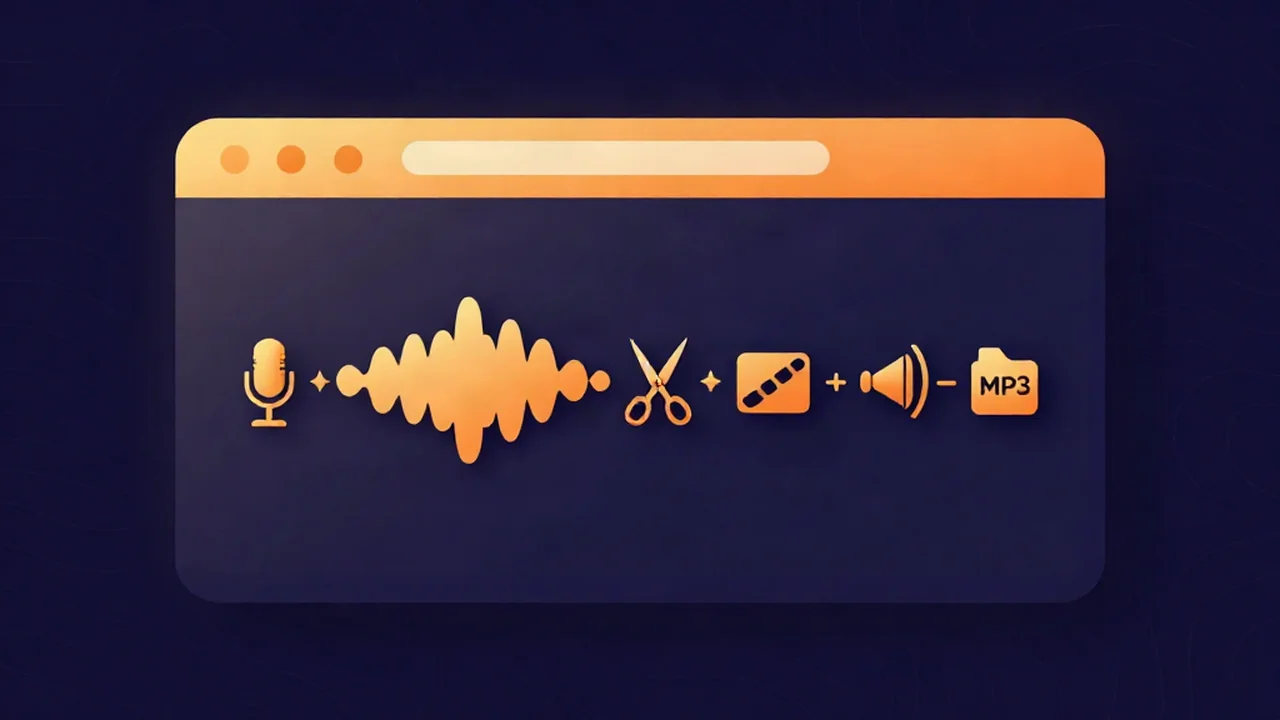
You can record and edit a podcast online free with the browser audio recorder on Vocal Cut, then run the whole rest of the pipeline — noise cleanup, cutting, stitching, leveling, and MP3 export — in the same browser tab. There's no account, nothing to install, and your audio never leaves your device: every tool processes the file locally. This guide walks a spoken-word episode from the first take to a publish-ready MP3, and it's honest about the one thing a browser can't do for you — magically capture a remote guest.
The browser podcast pipeline at a glance
Six stages, one tool each. Do them in order and you have a finished episode:
- Record the episode with the online voice recorder.
- Clean the sound with the noise reducer in Voice mode.
- Cut mistakes and dead air with the silence remover and the audio cutter.
- Stitch segments, intro, and outro together with the audio joiner.
- Level the loudness with the volume normalizer.
- Export a delivery MP3 with the audio converter.
You don't have to use all six every episode, but this is the full order when you need it.
Step 1: Record the episode
Start by capturing your voice with the audio recorder. Pick your microphone from the input-device picker, watch the live level meter so you're not clipping or whispering, and hit record — the elapsed-time readout tells you how long the take is running.
A few things worth knowing before you commit a take:
- It records one input device. The recorder captures the single microphone you select, so choose your good mic, not the laptop's built-in one if you can help it.
- Aim your levels at roughly two-thirds of the meter. Peaks that slam the top clip, and clipping can't be undone later. Leave headroom.
- The output format is your browser's default: WebM/Opus in current browsers, MP4/AAC on older Safari versions. Every later tool reads it, and you'll convert to MP3 at the very end.
For a deeper walk-through of the capture step, see how to record audio in your browser, and for the podcast session itself (headphones, levels, sync claps for remote guests) see How to Record a Podcast With an Audio Recorder. Record each segment as its own take if that's easier — you'll stitch them in Step 4.
Step 2: Clean up the sound
Raw voice recordings almost always carry room hiss, a computer fan, or a low AC hum. The noise reducer removes background noise before you do any editing, so every later step works on a clean signal.
For a podcast, choose Voice mode. It runs an AI speech-enhancement model (GTCRN) built for speech — podcasts, voice memos, and interviews — and it does its work in a background worker with real progress. The first time you use it, it downloads the model — about half a megabyte, cached after that, so it's a one-time fetch, not something that runs on your audio in the cloud. If your recording has a steady electrical hum, switch on the optional hum-removal toggle as well.
One rule: don't run music through Voice mode. The model is tuned for speech; the separate Music mode uses spectral processing for songs. If you want to understand what the model is actually doing to your voice, how AI noise reduction works explains it. Clean each recording — including each remote guest's file — before moving on.
Step 3: Cut mistakes and dead air
Editing spoken word is mostly deleting: the false starts, the long pauses, the "um, let me try that again." Two tools cover it.
For the gaps and dead air, use the silence remover. It has a threshold control in dB (how quiet counts as silence) and a minimum-silence-duration control (how long a gap must be before it's trimmed). Set the threshold just below your quietest real speech and the minimum duration to something like half a second, and it trims every pause automatically without touching your words. To remove silence cleanly without clipping breaths, our guide on removing silence covers how to tune those two numbers.
For a specific mistake — a flubbed sentence, a phone that rang, a section you want gone — use the audio cutter. You set a start and end point and remove that exact section. Silence removal is the broad pass; the cutter is the scalpel for the one thing you know needs to go.
Step 4: Stitch segments, intro, and outro
Once each piece is clean and trimmed, combine them into one episode with the audio joiner. It joins multiple files into a single track in the order you arrange them, and it handles files that differ in sample rate or channel count, so a mono voice take and a stereo intro sting won't fight each other.
This is where your episode takes shape: intro music, then segment one, then the interview, then the outro. If you recorded a remote guest separately (see the guests section below), this is also where you place both people's cleaned files into one timeline. The mechanics are the same whether you're assembling a podcast or combining songs into one file — arrange, then join.
Step 5: Even out the loudness
A finished episode should sit at one consistent loudness so listeners aren't riding the volume knob between your intro and your quiet moments. Use the volume normalizer in LUFS mode for this — LUFS measures perceived loudness, which is what you actually want to match, not raw peaks.
Here's the honest part: there is no button labeled "Podcast." The presets are Spotify (-14), YouTube (-14), Apple Music (-16), and Club/Loud (-9). The widely used spoken-word target is -16 LUFS — Apple Podcasts' recommended level, and exactly the value of the Apple Music preset. So for a podcast, pick the -16 LUFS target (the Apple Music preset); it's the right number even though the label says something else. For the background on the units, how to normalize audio volume explains LUFS versus peak normalization.
If your voice also sounds thin or boomy after leveling, a light EQ pass helps — how to EQ a podcast voice covers the frequency moves that make speech sit right.
Step 6: Export and publish
Finally, produce the file you'll upload to your host with the audio converter. MP3 is the right podcast delivery format — it's what every podcast platform expects and every player supports.
MP3 is worth choosing for a second reason: it uses a native encoder, so exporting MP3 needs no extra download. (WAV and Opus are also native; FLAC, OGG, M4A, and AAC use a one-time ffmpeg core download of around 20 MB — none of which you need for a podcast.) Export the MP3, and that file is your episode, ready to upload to your host.
Recording remote guests
Be clear-eyed about this: the recorder captures your own selected input, not a remote caller. Nothing in a browser can reach through a video call and pull in your guest's microphone as a separate clean track. So don't record your side and expect their voice to come along cleanly — it won't.
The reliable browser-only method is a double-ender. Each person opens the audio recorder on their own machine and records their own end locally, at full quality, while you talk over any call app just to hear each other. Afterward, you collect both files, clean each in the noise reducer, and stitch them together in the audio joiner. It's more coordination up front, but each voice ends up crisp instead of squashed through a call codec.
If two people are in the same room, it's simpler: one microphone and one recording will pick up both of you. Only remote guests need the double-ender.
Frequently asked questions
Can I really record and edit a whole podcast for free with no account? Yes. Every tool in this pipeline is free with no sign-up and no upload. The processing runs locally in your browser, so your audio never leaves your device. Some AI features download a small model or codec the first time you use them, but that's the tool coming to you, not your recording going out.
What loudness should a podcast be leveled to? Target -16 LUFS, which is Apple Podcasts' recommended level and a common spoken-word standard. In the volume normalizer, that's the value of the Apple Music preset — there's no button literally labeled "Podcast," so pick the -16 LUFS (Apple Music) target. Level in LUFS mode rather than peak, because LUFS matches perceived loudness across your whole episode.
How do I record a remote guest in the browser? Use a double-ender: each person records their own end locally with the audio recorder while you talk over any call app to hear each other. Then collect both files, clean each with the noise reducer, and stitch them in the audio joiner. The recorder only captures your own selected input device, so it can't grab a remote guest's microphone automatically.
Which mode of the noise reducer should I use for voice? Use Voice mode. It runs an AI speech-enhancement model built for speech — podcasts, voice memos, and interviews — with an optional hum-removal toggle for electrical buzz. Music mode is a separate spectral process meant for songs — don't run spoken word through it, or you'll get artifacts. Clean every voice file, including each remote guest's, before you edit.
What format should I export my finished episode in? MP3. It's the format every podcast host and player expects, and in the audio converter it exports with a native encoder, so there's no extra engine to download. Use WAV only if your host asks for a lossless master. FLAC, OGG, M4A, and AAC each trigger a one-time codec download and none are needed for podcast delivery.