Remove Fan and AC Noise With a Noise Reducer
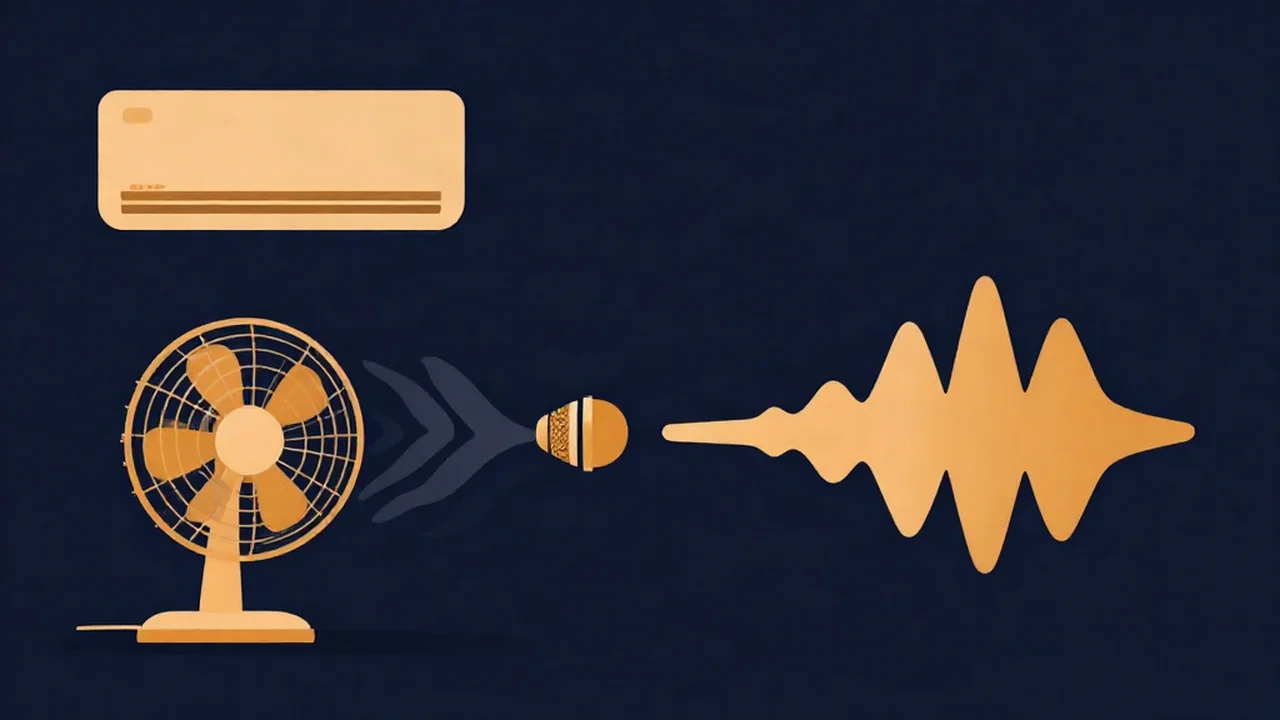
To remove fan and AC noise, run the recording through a free Noise Reducer, pick Voice mode for speech or Music mode for anything with instruments, then blend the result back until the drone drops away without the voice going thin. It runs in your browser, and your audio never leaves your device. A steady fan is the friendliest kind of background noise there is, so expect a big improvement. Just don't expect silence.
This guide covers the fan-and-air-conditioner case specifically. For every other kind of room noise, start with How to Remove Background Noise from Audio, or browse the rest of the Audio How-To Guides.
Why fan and AC noise is the easiest background noise to remove
A computer fan, an air conditioner, a fridge, a server rack and an HVAC vent all make roughly the same sound: a broad, even whoosh that doesn't change from one second to the next. That constancy is what makes it easy. The noise you hear in the gaps between sentences is the same noise sitting underneath the words, so a tool that measures it in the quiet parts knows what to take out of the loud parts.
Compare that with the neighbours:
- Wind is low, gusty and uneven, so a profile taken in one second is wrong in the next. How to Reduce Wind Noise in Recordings deals with it.
- Hum is tonal, a narrow drone on 50 or 60 Hz and its harmonics. That needs a different fix, covered in How to Remove Hum and Buzz from Audio.
- Hiss is also steady and broadband, but it sits higher up. How to Remove Hiss from Audio has the details.
If you open a fan recording in the Spectrogram, the drone shows up as a flat, even band running the whole length of the file. When you see that, you're in the easy case. How to Read a Spectrogram explains what you're looking at.
What you'll need
- The recording, as MP3, WAV, FLAC or M4A. Those open in every modern browser; Safari can't read OGG or Opus.
- A few seconds of room tone in the file, or at least some natural pauses. More on why below.
- Headphones, so you can hear what the processing is doing.
Why room tone matters
Room tone is 5 to 10 seconds of the room with nobody talking, just the fan doing its thing. Record it at the start or end of a take. It's useful in an edit anyway (you can patch gaps with it), and it helps noise reduction too.
Music mode builds its noise profile automatically. There's no "select a noise sample" step. For each frequency, it looks at the quietest 20% or so of moments across the whole file and treats that level as the noise. If the file has real pauses, those quiet moments are pure fan, and the profile is accurate. If someone talks wall to wall with no breaths, the quietest moments still have voice in them and the tool has less to go on. A few seconds of room tone settles it.
How to remove fan noise from audio, step by step
- Open the Noise Reducer and drop your file onto the drop zone. It's decoded right in your browser, so the file stays on your machine.
- Choose a mode. Voice is the AI speech model (GTCRN), for podcasts, voice memos and interviews. Music is spectral processing, not AI, for hiss, hum and broadband noise on mixes. For a voice over a fan, try Voice first. For music, or a voice you want to keep in stereo, use Music.
- If the fan or AC also has an electrical hum, tick "Also remove 50/60 Hz electrical hum (auto-detected)". For a pure whoosh, leave it off.
- Click Reduce noise (Voice mode) or Reduce noise (Music mode). The first Voice run downloads the small speech model once (about 0.5 MB) and caches it. Music mode needs no download. Long files take a while either way, and progress is shown as it works.
- Press play and move the Original ↔ Denoised slider. The readout shows "Noise reduction: NN%". It starts at 75%. Try pushing it to 100%, then pull back until the voice sounds natural again. A little fan left underneath almost always sounds better than a voice that's been scraped.
- Pick an export format (WAV is the default; MP3 and, where your browser supports it, Opus are also there) and click Export WAV or Export MP3. Reset File starts over with something else.
Music mode is deliberately conservative. Its maximum cut is about 16 dB, so it turns a fan down a lot rather than wiping it to digital silence. It also keeps your stereo image and the full sample rate. Voice mode works differently: it's a model trained to keep speech and drop everything else, which is why it can go further on a voice, and why it outputs mono. How AI Noise Reduction Works explains the difference.
Optional: tame AC rumble with a low shelf
Big air conditioners and HVAC ducts often add a low rumble under the whoosh. After noise reduction, open the Equalizer and pull the 80 Hz low shelf down, somewhere between −6 and −12 dB, while listening. It isn't a true high-pass filter, but on a voice it works as a rough low cut, and it takes out the weight a speaking voice doesn't need. The Flatten button resets everything if you overdo it.
How to remove background noise from a video with a fan in it
The same workflow works on video; the audio just has to come out first. Load the video file into Video to Audio to pull out the soundtrack (How to Extract Audio from a Video walks through it). Clean that file with the Noise Reducer as above, export WAV, and put it back on the timeline in your video editor in place of the original audio. Line it up at the first frame and it stays in sync, because the processing doesn't shift the timing.
When the fan is still audible
It sounds warbly or underwater. Those chirpy, watery artifacts are known as musical noise, and they come from pushing reduction too hard. Lower the slider. Somewhere around half to three-quarters (the default is 75%) is often where the drone drops and the artifacts haven't started yet.
The voice sounds thin, or it's suddenly mono. Voice mode outputs mono and focuses on the speech band, which is the trade-off for its stronger cleanup. If you need stereo or a fuller tone, run the file in Music mode instead.
The noise changes partway through. A fan that ramps up under load, or an AC compressor kicking on mid-take, means the noise isn't constant any more. One profile can't fit both halves. Split the file at the change with the Audio Cutter, process each section on its own, then join them back with the Audio Joiner.
There's music in the recording. Don't run songs through Voice mode. It removes everything that isn't a voice, including instruments, pads, reverb tails and cymbals. Use Music mode for anything musical.
Stop fan noise before you record
Cleanup works best on a recording that didn't need much. Before you press record:
- Turn it off. Switch off the AC or the desk fan for the length of the take. It's the only fix that removes the noise completely.
- Move away from it. Distance helps a lot, so put the mic on the far side of the room from the vent or the computer tower.
- Get closer to the mic. The nearer you are, the louder your voice is compared to the room, and the less noise reduction has to do. Mic Placement for Clean Voice Recordings covers distance and angle.
- Point the mic's dead side at the fan. A cardioid mic picks up least from directly behind, so aim its back at the noise.
Then grab those few seconds of room tone at the start. If you're setting up a show from scratch, How to Record a Podcast With an Audio Recorder uses the free Audio Recorder for the whole session.
Frequently asked questions
Can a noise reducer completely remove fan noise? Usually not to total silence, and you wouldn't want it to. Music mode caps its reduction at about 16 dB on purpose, which turns a steady fan down a long way while keeping the voice natural. Voice mode can go further on speech because it keeps only the voice. In both cases, blending a little of the original back in sounds more natural than pushing to the maximum.
Should I use Voice or Music mode for fan noise? Use Voice mode for speech-only recordings like podcasts, interviews and voice memos. It uses an AI speech model and tends to clean more, but its output is mono. Use Music mode for anything with instruments, or when you want to keep stereo and the full sample rate. Music mode uses spectral processing, not AI, and needs no model download.
Why should I record room tone? Room tone is a few seconds of the room with nobody speaking. The Noise Reducer's Music mode learns the noise automatically from the quietest moments in the file, so those seconds give it clean, fan-only material to measure. Room tone is also handy in editing, because you can use it to fill gaps without an obvious drop in background sound.
Is my audio uploaded when I remove fan noise? No. The Noise Reducer processes audio entirely in your browser, so your audio never leaves your device. The only download is Voice mode's small speech model, which comes to your browser once from Vocal Cut's own server and is then cached. Music mode downloads nothing extra at all.
How do I remove fan noise from a video? Extract the soundtrack from your video file with the free Video to Audio tool, clean that audio in the Noise Reducer, and export it as WAV. Then replace the original audio track in your video editor with the cleaned file, aligned at the first frame. This works on video files you already have on your device.