Record Clean Vocals at Home on an Audio Recorder
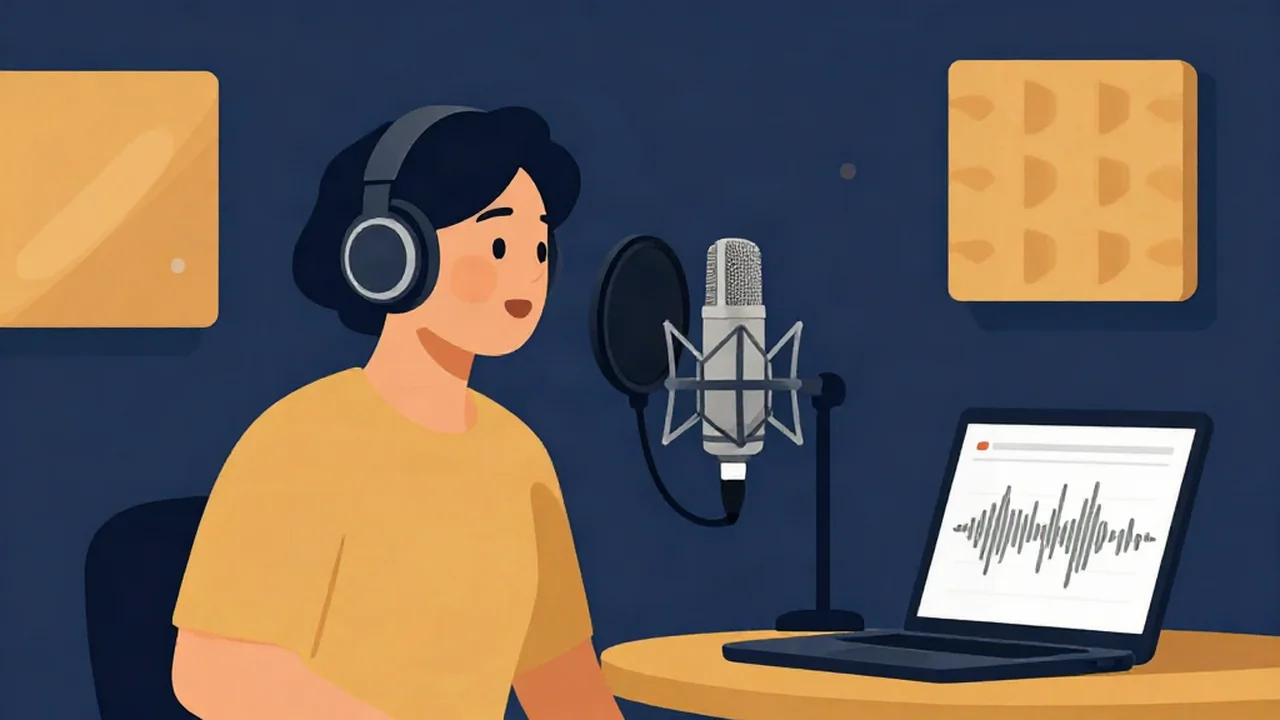
You can record a clean sung vocal at home with the free online audio recorder on Vocal Cut if the setup around it is right. Sing in a dead, quiet corner, keep the mic a steady hand-span away behind a pop filter, hear the backing only through closed-back headphones, and set your level on the loudest line of the song. Then record several takes, keep the best, and clean it up lightly. There's no account, and your audio never leaves your device.
This guide covers the vocal take itself. For the whole project, see How to Record a Cover Song; for timing and delivery, see How to Sing Over an Instrumental.
Why singing is harder to record than speech
Speech stays in a fairly narrow volume range. A song can move from a breathy verse to a full-voice chorus, and a level that suits one is wrong for the other. Singing also exposes what speech hides:
- Sustained notes show every bit of room echo and every change in your distance from the mic.
- Breaths between phrases are bigger and faster, and a close mic hears them all.
- Sibilance gets sharper when you push, so "s" and "sh" sounds can turn harsh.
- Plosives sung loudly send a much bigger puff of air at the mic than spoken ones.
What you'll need
- A microphone. A USB or XLR vocal mic is best; a headset mic works for demos.
- A pop filter, or a thin sock stretched over a wire hanger.
- Closed-back headphones (not open-back, and not earbuds turned up loud).
- A second device or browser tab to play the backing track, as a file you already have.
- A current browser on HTTPS, which the recorder needs before it can use your mic.
Set up a dead, quiet corner
Echo is the problem you can't fix later. A held note in a bare room rings off the walls, and that ring is baked into the take.
A closet full of clothes is the classic home vocal booth. Otherwise, hang a duvet or heavy blankets behind and beside the mic in your most furnished room. Clap once where you'll stand; if you hear a ring, add more fabric. Turn off fans and anything that hums, silence your phone, and stand if you can, since you'll breathe better and there's no chair to creak.
Mic distance and pop filter for sung dynamics
Start with the mic about a hand-span away, roughly 6 to 8 inches (15 to 20 cm), with the pop filter a couple of inches in front of it. Mic Placement for Clean Voice Recordings explains that starting point. Singing adds two habits.
Back off on the big notes. When you belt, lean back a few inches or turn your head slightly off the mic, then move back in for quiet lines. This keeps loud phrases from slamming the input.
Otherwise, stay put. Unplanned drifting changes your tone and level from phrase to phrase. Mark your spot on the floor and put the lyrics at eye level behind the mic.
Monitor the backing track without bleed
Bleed is the backing track leaking into your vocal mic. Once it's in the take you can't fully remove it, and compression makes it louder.
- Play the backing from somewhere else. The Audio Recorder records your mic only and doesn't play the backing, so use a second device, a music app or another tab.
- Speakers off, headphones only. Anything from speakers goes straight into the mic.
- Use closed-back headphones. Open-back headphones leak sound outward by design, and a close mic picks up the backing or click spilling out of them. That's the classic home bleed.
- Keep the volume moderate. Loud enough to sing in tune, no louder. If you lift one ear cup to hear yourself, keep it pressed against your head, not hanging near the mic.
Prepare the backing before the session. The Karaoke Maker is a live mixer that can lower the original vocal and shift the key while keeping the tempo. For a full instrumental, the Vocal Remover uses an AI model that downloads on first use and takes real time to run. If the original key sits too high or low for you, the Pitch Changer can move it; Fit a Song to Your Voice With a Pitch Changer shows how to pick the right number of semitones.
Set levels on your loudest phrase
Set the input gain while singing the loudest line in the song, usually the last chorus, at full volume with the backing playing. If you set it on a verse, the chorus will clip.
Aim for peaks around -12 to -6 dBFS (dBFS explained here) on that loudest line, which leaves headroom for the note you push harder on the real take. Quiet verses will sit lower, and that's fine: a low level can be raised later, a clipped belt can't be cleanly repaired. How to Set Recording Levels on an Audio Recorder shows how to check this with a test take.
One caveat. The recorder opens your mic with the browser's defaults, and most browsers switch on echo cancellation, noise suppression and auto gain control, which are built for calls. With singing they can make the level breathe, dull a held note or cut off a quiet tail, and the recorder has no switch to turn them off. The Mic Test shows which ones your browser has enabled. If long notes keep fading, a desktop recorder or DAW is the better tool.
Record the vocal in the Audio Recorder
These steps follow the real controls on the Audio Recorder, a free online voice recorder that runs in your browser tab.
- Enable the microphone. Click Enable microphone and allow access when the browser asks. Nothing uses your mic until you do.
- Choose your input. Pick your vocal mic in the Input dropdown. Device names appear after you grant permission, and you can't switch inputs mid-recording.
- Check the meter. Sing your loudest line and watch the level meter move, to confirm the right mic is live.
- Record a test take. Press Record, start the backing on your other device, sing a verse and chorus, then press Stop. When Recording ready appears, play it back in headphones and listen for bleed, echo, pops and clipping.
- Record your takes. Press Record, start the backing and sing it through, then press Stop. Pause and Resume exist, but the backing on your other device keeps playing while the recorder is paused, so a paused take drifts out of time with it. If you need a break, stop and start a fresh take.
- Download each take before recording the next. The page holds one take, and pressing Record again replaces it. Choose WAV for a vocal you'll edit. The other options are the native file marked (as recorded) (WebM, OGG or MP4, depending on your browser) and MP3 · 192 kbps.
Record several takes, then comp
Sing three or four full takes, then listen back away from the mic. Combining the best parts of several takes is called comping, and since Vocal Cut has no multitrack timeline, keep it simple. If one take is clearly strongest, use it. If take 2 has the best verse and take 3 the best chorus, trim each section with the Audio Cutter, cutting at a breath or rest, then join them in order with the Audio Joiner. Leave its crossfade at 0 if the vocal has to stay in time with the backing: a crossfade overlaps the pieces, which pulls every later section earlier by the crossfade length. If you do use one, keep it very short.
Sections only stay in time with the backing if the cuts land on matching points in the song. For phrase-by-phrase comping locked to the beat, use a DAW.
Light cleanup that keeps the vocal natural
Work in this order and do less than you think you need. A sung vocal shows over-processing faster than speech.
- Noise. In the Noise Reducer, try Music mode first: it covers the full range and keeps stereo. Voice mode's AI speech model processes the 16 kHz speech band and outputs mono, which can take the air off a sung vocal. Lower the blend below its 75% default if the voice thins out.
- EQ. In the Equalizer, high-pass the rumble below your voice. How to EQ a Vocal in Your Browser covers the rest.
- Compression. The Compressor evens out verse-to-chorus jumps. It controls dynamics, not file size, so start gently.
- Reverb. Add just a touch with Audio Reverb so the dry vocal sits with the track.
- Loudness. Finish in the Volume Normalizer for a consistent level.
Troubleshooting
The backing track is bleeding into the vocal
Switch to closed-back headphones, lower their volume and turn off speakers, then re-record. Bleed is very hard to clean out afterwards, so a fresh take is the real fix.
S sounds are harsh
Turn the mic slightly off-axis or back off an inch. Don't add bright EQ to an already sibilant vocal.
There are pops on P and B
Move the pop filter a little further from the mic, angle the mic to the side of your mouth, and lean back on loud plosive words.
The vocal sounds roomy or boxy
That's reflections. Add soft material behind and beside the mic, move an inch closer and avoid bare corners. Noise reduction won't remove echo.
The level pumps or long notes fade
The browser's call processing is probably reacting to your singing (see the caveat under levels). For demanding takes, use a desktop recorder or DAW.
The loud belts are clipped
Reset the gain on your loudest phrase, step back on big notes and re-record. How to Avoid Clipping on an Audio Recorder covers the details.
Next steps
With a clean take saved, rework the backing's key or vocal level in the Karaoke Maker if needed, then follow How to Record a Cover Song to mix it into a finished cover. More recording and editing walkthroughs live in the how-to guides.
Frequently asked questions
Can I record good vocals with an online voice recorder? Yes, for demos, covers and practice, as long as the room and mic are right. A browser recorder captures what your microphone hears, so a dead, quiet space, a pop filter and a steady distance matter more than the software. One limit: browsers usually apply call processing such as auto gain control, which can affect long sung notes. Download each take as WAV for editing.
How do I stop the backing track from bleeding into my vocal? Play the backing through closed-back headphones at a moderate volume, with speakers turned off. Open-back headphones and loud earbuds leak sound that a close microphone picks up. If you take one ear cup off to hear yourself, keep it pressed against your head rather than hanging near the mic. Bleed cannot be removed cleanly afterwards, so prevent it before you record.
What level should I record vocals at? Set the input gain while singing the loudest phrase of the song at full volume, and aim for peaks around -12 to -6 dBFS. That leaves headroom for an extra-loud note on the real take. Quiet verses will sit lower, which is fine, because a low level can be raised later without damage, while a clipped belt cannot be cleanly repaired.
How many vocal takes should I record? Three or four full takes is a practical number for a home session. More than that and your voice tires, so later takes often get worse. Download each take before recording the next, then listen back and keep the strongest full take, or cut matching sections such as the best verse and best chorus at a breath point and join them in order.
Should I use noise reduction on a sung vocal? Only lightly. Noise reduction built for speech can thin out a singing voice, and some voice models output mono and process only the speech band. Use a full-range music setting with a low blend, and listen for dullness on held notes. The better fix is a quieter recording space, since noise reduction cannot remove room echo at all.