How to Split Stereo to Mono Left & Right Tracks
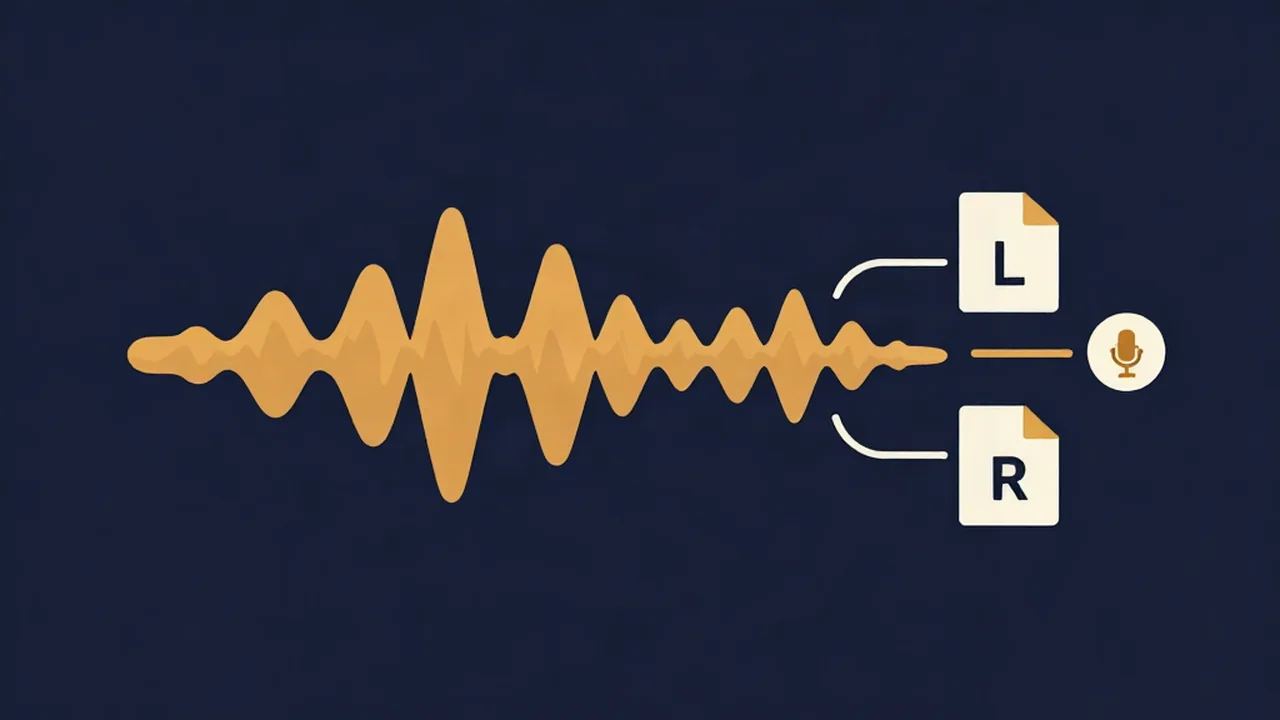
To split stereo to mono files, drop your recording into Vocal Cut's free Channel Splitter and download the left and right channels as two separate mono tracks. There are no settings to tune, just preview and download. The splitting happens in your browser, so your audio never leaves your device, and there's no account to create.
This is the right move when each side of the file holds something different: one interview guest per channel, a lav mic on the left and a camera's built-in mic on the right, or a field recorder writing two mics as dual mono. Splitting gives you each source as its own file so you can clean, level, and edit them independently. If you'd rather fold both sides into a single mono file, that's a different job, covered in How to Use a Stereo to Mono Converter (Free).
What you'll need
- A stereo file you already have on your device. The tool lists MP3, WAV, FLAC, and M4A, and in practice anything your browser can decode will load.
- A current desktop or mobile browser.
Nothing to install. The tool isn't AI-based, so there's no model to fetch and no long processing wait.
How to split audio channels, step by step
- Drop the file onto the dropzone on the Channel Splitter page, or click it to pick a file. You'll see "Loading audio…" while your browser decodes it.
- Check the channel list. A stereo file shows two rows, "Left" and "Right". A 5.1 surround file shows six: Front left, Front right, Centre, LFE (sub), Surround left, and Surround right. Files with other channel counts are labelled "Channel 1", "Channel 2", and so on.
- Read the peak level on each row. Each channel shows its loudest point, such as "Peak -3.2 dB", or the word "Silent" if it contains no signal at all. This is the quickest way to see which mic ended up where.
- Preview each side. Press the play button on a row to hear that channel on its own. Do this before exporting, so you know which file will hold which voice.
- Pick an export format. WAV is the default: lossless and 16-bit. MP3 lets you choose a bitrate. Opus appears only in browsers that can encode it, so you won't see it in Safari. Every export is a mono file.
- Download. Use the per-row button (labelled with the format, like WAV or MP3) to save one channel, or the amber "Download all 2 channels" button to save every channel as its own file. The count on that button follows the file, so a 5.1 file reads "Download all 6 channels". Files are named after your original, so
interview.wavbecomesinterview_left.wavandinterview_right.wav.
To load a different file, click "Reset File".
The samples are copied straight across. Nothing is mixed, filtered, or turned up or down, so each mono file holds exactly what that channel held.
When to split stereo to mono tracks
Splitting only helps when the two channels carry different sources. Common cases:
- Two-mic interviews and podcasts. Many recorders and interfaces put mic 1 on the left and mic 2 on the right. Split them and each person gets their own track.
- Lav on one side, camera mic on the other. Some cameras and recorders let you send a wireless lav to one channel and the onboard mic to the other. The lav is usually your main dialogue; the onboard mic is a backup or room sound.
- Dual-mono field recordings. Dual mono means two independent mono signals stored side by side in one file. A recorder may capture one mic as two channels, often with the second side recorded at a lower level as a safety copy in case the first one clips. Splitting lets you pick the clean take.
- Archiving surround stems. A 5.1 file splits into six mono files, one per speaker channel.
When it isn't: vocals in a mixed song
Splitting audio channels won't pull the singer out of a finished song. In a normal stereo mix the lead vocal sits in the center, which means it's on both the left and right channels at once. Split that song and you get two files that both contain the vocal, the drums, and most of the rest.
To isolate a voice from a mixed track you need source separation, which works on the sound itself rather than on channels. The Vocal Remover separates a song into vocals and instrumental, and the Stem Splitter breaks it into four stems. Stem Splitting vs Vocal Removal: Which One? helps you choose between them. If you're unclear on what the two channels in a file actually represent, Mono vs Stereo: What's the Difference? covers the basics.
What to do with the two files afterwards
Once each voice is on its own track, you can fix problems on one without touching the other. A workable order:
- Clean each track separately. Run each file through the Noise Reducer. One mic often picks up more hum or room noise than the other, and treating them individually means the quiet side doesn't get over-processed. How to Remove Background Noise from Audio walks through the settings.
- Bring them to a matched level. Guests rarely sit the same distance from their mics. The Volume Normalizer can set both files to the same loudness target, and How to Normalize Audio Loudness (LUFS) explains which target to pick.
- Trim and edit. Cut false starts or dead air in the Audio Cutter. If you're editing in a multitrack editor, keep the two files the same length so they stay in sync.
- Recombine or sequence. The Audio Joiner puts files one after another, which suits stitching segments together. To play both voices at the same time again, layer the two files on separate tracks in a multitrack editor.
For a full podcast pass from raw recording to finished file, see Podcast Audio Cleanup: Noise Reducer to Export.
Troubleshooting
One side says "Silent". That channel had no signal recorded, usually because only one mic was plugged in. Keep the side with the audio. If your real problem is a file that plays in only one ear, How to Fix Audio Playing in Only One Ear covers that fix. Note that "Silent" only appears for true digital silence; a channel with faint hiss shows a very low peak instead.
Both files sound identical. The recording was mono saved as a two-channel file, or dual mono with the same signal on each side. Splitting can't create a difference that isn't there. Either file will do, and you don't need both.
Will the split files play in only one ear? No. Each export is a mono file, and a mono file plays through both speakers or both sides of your headphones. The left channel's audio becomes a centered mono track, not a left-only one.
The vocal is still on both files. You split a mixed song. See the section above on vocals; you need the Vocal Remover or Stem Splitter instead.
Only one file downloaded. When a page saves several files at once, your browser may ask permission to download multiple files. Allow it and try "Download all" again, or use the per-row buttons one at a time.
The tool says there is nothing to split. The file has a single channel. You can still export it, which is useful if you only wanted a format change.
Related tasks
If what you want is one mono file built from both sides, or from just one, use the Stereo to Mono Converter. If a mix of the two sides sounds hollow, What Is Phase Cancellation? explains why. More step-by-step guides live in the How-To hub.
Frequently asked questions
How do I split stereo audio into two mono tracks? Open the Channel Splitter, drop in your stereo file, and preview the Left and Right rows to confirm what each holds. Choose WAV, MP3, or Opus, then click "Download all 2 channels". You get two mono files named after the original, such as interview_left.wav and interview_right.wav. It runs in your browser, so your audio never leaves your device.
Can splitting stereo channels remove vocals from a song? No. In a typical stereo mix the lead vocal is centered, so it is present on both the left and right channels. Splitting gives you two files that each still contain the vocal. To isolate or remove vocals from a mixed song, use the Vocal Remover for vocals and instrumental, or the Stem Splitter for four separate stems.
Does splitting channels change the sound quality? The samples are copied across without mixing, filtering, or any level change, so each file holds what that channel held. Exporting as WAV keeps it lossless at 16-bit. MP3 and Opus are compressed formats, so they trade some detail for a smaller file. Choose WAV if you plan to edit the tracks further.
What is the difference between splitting stereo and converting it to mono? Splitting keeps both sides and saves each as its own mono file, so a two-mic interview gives you two tracks. Converting to mono produces one file, either by mixing left and right together or by keeping a single side. Split when the channels hold different sources you want to edit separately; convert when you just need one mono version.