How to Record System Audio in Your Browser
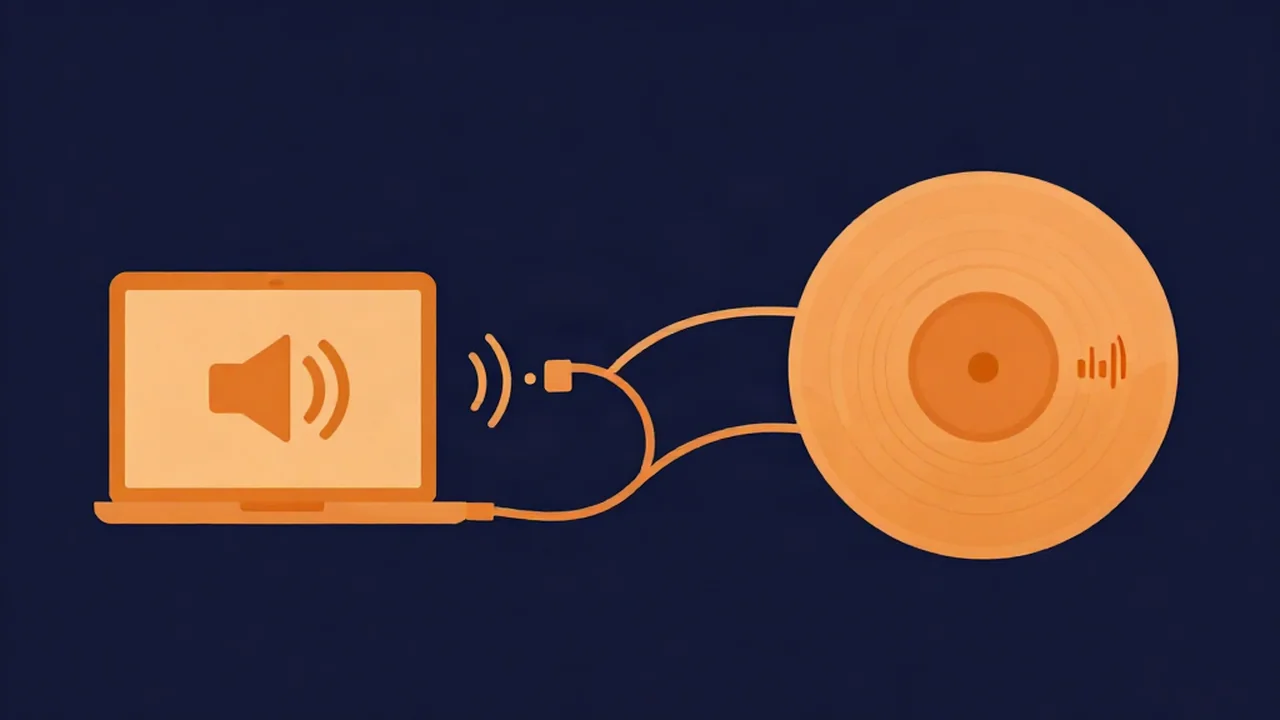
A browser audio recorder like the Audio Recorder captures an input device, so it can't grab your computer's sound directly. The fix is to route the system output to a loopback input, select that input in the recorder, and press Record. Setup is a one-time job, and after that it's mostly a matter of picking the right input.
What you'll need
- A desktop or laptop running Windows, macOS, or Linux. Phones won't work for this.
- A current browser: Chrome, Edge, Firefox, or Safari.
- A loopback input. On Windows that's often the built-in Stereo Mix; on macOS it's a free virtual driver called BlackHole; on Linux it's a monitor source your sound server already provides.
- Sound that is yours to record: your own synth or DAW output, game audio for your own clip, an app's sound for a tutorial, or a call everyone has agreed to record.
Can a browser record system audio?
Yes, though the route is different from the one most people try first. Browsers have two separate ways to capture sound.
The first is input capture. A page asks permission to use a microphone-style device, and the browser hands it whatever that device hears. A typical online voice recorder works this way, and so does our online audio recorder.
The second is screen-share capture. A page opens the browser's share-screen dialog, and in some browsers that dialog can include the audio of a tab or the whole system. It's a different permission flow built for screen recording and video calls.
The Audio Recorder uses the first path only. There is no tab or screen-share audio option in it. So to record computer audio with it, the computer's output has to show up as an input device.
How loopback recording works
A loopback device takes whatever your computer is sending to its speakers and presents it as a recording input. To any app, including a browser, it looks like one more microphone in the list. Pick it, and you record internal audio instead of the room.
Nothing passes through the air, which is why loopback beats holding a mic up to your speakers.
Set up a loopback input
Windows: Stereo Mix
Many Windows PCs already have a loopback input, and it is usually hidden by default.
- Open Settings > System > Sound, scroll down, and choose More sound settings (on Windows 10 the link is called Sound Control Panel).
- Go to the Recording tab.
- Right-click an empty area of the device list and tick Show Disabled Devices.
- If Stereo Mix appears, right-click it and choose Enable.
Whether Stereo Mix exists depends on your audio driver. Realtek drivers commonly provide it. If it isn't listed after you unhide disabled devices, your current driver most likely doesn't offer it.
The fallback is VB-CABLE from VB-Audio, a donationware virtual cable. Install it, set CABLE Input as your Windows playback device, and later choose CABLE Output in the recorder. While the cable is your playback device you won't hear the sound through your speakers, so switch back when you're done.
macOS: BlackHole
macOS ships no Stereo Mix-style input, so you need a virtual driver. BlackHole, from Existential Audio, is open source, and the 2ch build is enough for stereo.
If you set BlackHole as your output directly, the recording works but you hear nothing. To keep listening while you record:
- Open Audio MIDI Setup (in Applications > Utilities).
- Click + at the bottom left and choose Create Multi-Output Device.
- Tick your built-in output (or headphones) and BlackHole 2ch.
- Right-click the new device and choose Use This Device For Sound Output.
The volume keys don't control a Multi-Output device. Set a comfortable level before you switch, and change the output back to your normal speakers when the session is over.
Linux: monitor sources
PulseAudio and PipeWire expose a source named "Monitor of" followed by your output device. That is your loopback input, with nothing to install.
Which browser you use matters here. Firefox typically lists monitor sources as inputs. Chrome has historically hidden monitor inputs, so if yours doesn't show one, use Firefox or create a virtual source in your sound server and select that instead.
Record it with the Audio Recorder
With the loopback input in place, the recording itself is short.
- Open the Audio Recorder and click "Enable microphone". Your browser asks for permission. The wording says microphone even though you're about to choose a loopback device, because the browser treats every audio input the same way.
- Choose your loopback device in the "Input" dropdown. Pick Stereo Mix, CABLE Output, BlackHole 2ch, or the monitor source. Do this before recording: the picker is locked while a take is running.
- Play the sound and watch the level meter. If the bar moves, the routing works. If it sits still, the sound is going to a different output than the one your loopback device is listening to.
- Click "Record". The timer starts counting.
- Use "Pause" and "Resume" to skip parts you don't want, then "Stop".
- Preview the take in the "Recording ready" player.
- Download it. The first button saves the file as recorded, usually ".webm (as recorded)", or .ogg or .m4a depending on your browser. "WAV" and "MP3 · 192 kbps" convert the take on your device.
- Click "Release mic" when you're finished so the browser lets go of the input.
Your audio never leaves your device: the take is held in your browser's memory, and the conversions run locally. The tool has no time cap. Long takes are limited by your device's memory instead, so save long sessions in parts.
If you want the plain microphone version of these steps, see how to record audio in your browser.
Getting a clean capture
Expect some voice processing. Most browsers apply echo cancellation, noise suppression, and automatic gain to input capture by default, and the recorder uses the browser defaults. That processing is tuned for speech. Music sent through a loopback input can come out pumped or thinned, and in some browsers it may be recorded in mono (see mono vs stereo for what that costs you). The native take is also a compressed (lossy) Opus or AAC file, and the WAV download is a decode of that take, so it can't restore what compression removed.
This route suits reference captures, voice, and game or app sound. If you already have the audio as a file, use the file instead.
Set the level at the source. A loopback input follows your system and app volume. Turn the source up or down until the meter moves well without pinning to the top. A signal that hits the ceiling distorts, and no later step undoes it. See what audio clipping is and how to avoid it, and what gain staging is for the habit of leaving room at every stage.
Then silence everything else. Loopback records the whole output, not one app. Mute notifications, close chat apps, and pause anything else that might make noise mid-take.
Why screen-share recorders exist, and their limits
Tools built on the browser's share-screen dialog skip the loopback setup, which is their appeal. In Chrome and Edge that dialog can capture a tab's audio. System-wide audio through the same route depends on the browser and the operating system, and support is narrower in Firefox and Safari.
That gap is why people go looking for a screen and audio recorder for Windows rather than a browser tool. If you need video too, that's the right category. If you only need the sound, a loopback input plus a sound recorder in the browser covers all three desktop platforms.
Record only what you're allowed to
Record your own audio, or audio you have the right to capture. Calls need extra care, because consent rules vary by place. US federal law requires one party's consent, while a number of states require everyone's. The simplest rule works everywhere: tell everyone on the call and get a yes before you press Record. This is general information, not legal advice.
What to do with the recording
A raw capture usually has dead air at both ends. Trim it with the Audio Cutter. If the take came out quiet, bring it to a consistent level with the Volume Normalizer. For a spoken recording with hiss or background hum, run it through the Noise Reducer on its voice setting.
Recording a show rather than a clip? See how to record and edit a podcast online, or browse the rest of the how-to guides.
Frequently asked questions
Why isn't Stereo Mix in my list?
Stereo Mix is provided by the audio driver, not by Windows itself. First check that it isn't just hidden: in the Recording tab of the sound settings, right-click an empty area and tick Show Disabled Devices. If it still doesn't appear, your driver most likely doesn't offer it. Install a virtual cable such as VB-CABLE and select CABLE Output as the input instead.
Can I hear the audio while recording on a Mac?
Yes, with a Multi-Output Device. In Audio MIDI Setup, create one that includes both your speakers or headphones and BlackHole 2ch, then set it as the sound output. Audio plays through your speakers and reaches the recorder at once. The volume keys won't work on that device, so set your listening level before switching to it.
Why does my recorded music sound processed?
Most browsers apply echo cancellation, noise suppression, and automatic gain control to input capture by default, and those are designed for speech. Music passing through them can sound pumped, thin, or mono in some browsers. The take is also saved in a compressed format. For music you already own as a file, work from the file rather than re-recording it.
Does this work on a phone?
No. Recording a microphone in a mobile browser works, but phones don't expose a loopback input to browsers, so there is no device to pick that carries the phone's own sound. Recording system audio this way needs a desktop or laptop running Windows, macOS, or Linux, where a loopback or virtual input can be added.
Is there a time limit?
The Audio Recorder has no timer or cap. The practical limit is your device's memory, because the recording builds up in the browser instead of being sent to a server. For long sessions, stop and download in parts. An unsaved take is lost if the tab closes or the browser crashes, and no other copy exists.
Is it legal to record a call?
It depends on where you and the other people are. US federal law allows recording with one party's consent, but a number of states require consent from everyone on the call, and other countries have their own rules. The safe approach is to ask every participant before recording. Treat this as general information, not legal advice.