How to Make 8D Audio From Any Song
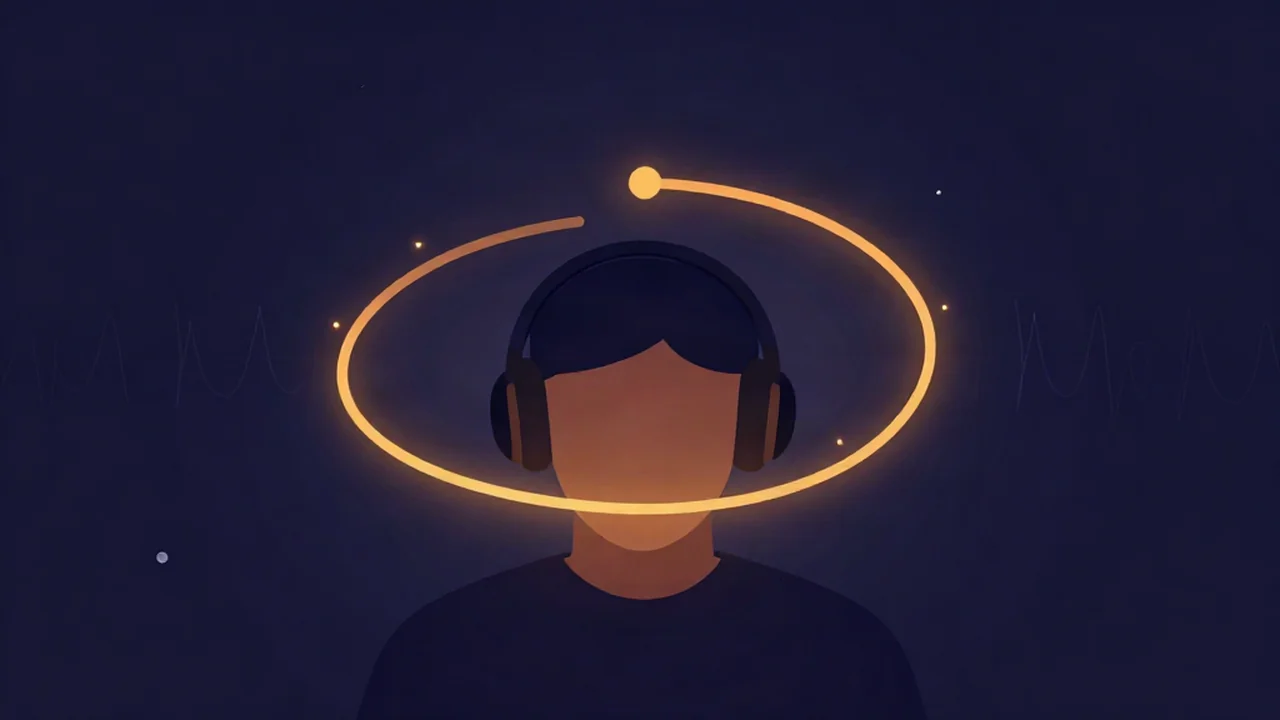
Make 8D audio from any song by dropping the file into the free 8D audio maker, previewing the effect with headphones, and adjusting two controls before you export. It runs entirely in your browser — no account, no upload, and your audio never leaves your device. Put your headphones on, because the effect only works on headphones, and you can have your first 8D track in about two minutes.
What is 8D audio (and what it actually means)
The name "8D audio" is marketing, not science — there is nothing literally eight-dimensional about it. What 8D audio means in practice is a stereo song that has been edited so the sound seems to circle around your head while you listen, usually with some added reverb for a sense of open space.
Under the hood, that swirling is created by two simple effects: auto-panning (the audio is continuously moved from your left ear to your right ear and back, in a circle) and reverb (synthetic echo that makes the track feel like it is playing in a large room). That is all "8D" is. It is not true 3D or surround audio, and it does not add height or extra channels — it is a moving stereo image on an ordinary two-channel file. Knowing that keeps your expectations honest and helps you dial the effect in well.
What you'll need
- A song file you already have — MP3, WAV, FLAC, or M4A all work. A wide, spacious stereo mix shows off the movement best; a narrow or dual-mono source still swirls, just less dramatically.
- Headphones or earbuds. This is not optional. On speakers the left and right channels blend together in the air before they reach you, and the effect disappears.
- About two minutes. There is no rendering queue and no waiting on a server.
How to make 8D audio
- Open the 8D audio tool in your browser. Nothing installs.
- Drag and drop your song onto the upload area (or click to browse). The file is decoded on your own device — it is never sent anywhere.
- Put your headphones on and press Play to start the real-time preview. The panel will show "Previewing — put your headphones on," and you should immediately hear the track begin to circle around your head.
- Set the rotation speed. This slider controls how fast the sound orbits, shown as "~X.Xs per rotation" (seconds for one full circle). The default is roughly one rotation every six to seven seconds, which suits most songs. Adjust while it plays and the change takes effect live.
- Set the reverb (space) slider to taste. A little goes a long way — it adds air and depth, but too much muddies the vocal and washes out detail.
- Choose your export format — WAV (lossless, the default), MP3, or Opus — then click Export. The tool renders the full track with the effect baked in, plus a short reverb tail, and downloads it as
8d_<yourfilename>. That file already contains the effect, so it plays back in 8D anywhere.
How does 8D audio work
The trick relies on how your brain locates sound. When something is off to your left, it reaches your left ear a fraction of a millisecond before your right ear, and slightly louder. Your brain reads that tiny left/right difference — called the interaural time and level difference — as direction. 8D audio fakes this on purpose: it smoothly slides the sound between the two channels so your brain keeps re-placing it in space, producing the sensation of a source travelling in a circle around you.
This is also exactly why 8D audio needs headphones. Headphones deliver the left channel only to your left ear and the right channel only to your right ear, keeping those timing cues intact. Two speakers in a room let both ears hear both channels, which erases the difference the effect depends on.
Tips for a good 8D edit
- Keep the rotation in the sweet spot. Somewhere around one rotation every 5 to 15 seconds feels immersive. Much faster gets dizzying and gimmicky; much slower is so gradual most listeners stop noticing it.
- Go easy on the reverb. Enough to add space, not so much that the mix turns to soup. If vocals start sounding distant, pull it back.
- Pick the right kind of song. Spacious, vocal-forward, or atmospheric tracks show off the movement beautifully. Dense, wall-of-sound mixes tend to smear when they swirl, so the effect reads as muddy rather than magical.
- Start from a clean stereo file. A low-bitrate or already-processed file gives the effect less to work with. If you want to layer 8D on top of another creator effect like slowed + reverb or a voice changer, do that first and feed the result in.
Troubleshooting
"It doesn't work on my speakers." That is expected — 8D audio only works on headphones or earbuds. Speakers blend the channels before they reach your ears and the swirl flattens out. Switch to headphones and it returns instantly.
"It sounds dizzying or nauseating." Your rotation speed is too fast. Slow it down so a full circle takes several seconds; longer rotations feel smooth and pleasant rather than frantic.
"The movement feels weak or barely there." Two things usually cause this: the rotation speed is set very slow, or the source is a dense, narrow mix with little space for the sound to travel through. Speed the rotation up a touch and start from a cleaner, wider stereo track.
"The reverb is drowning the track." Lower the reverb (space) slider. It is easy to overdo; a modest amount usually sounds best.
Related things to make
Once you are comfortable with the panner, the same file-in, effect-out workflow powers other creator edits: try slowed + reverb for the dreamy aesthetic, a voice changer for pitch and character shifts, or step up to full song rebuilds — make a remix using stems or make a mashup from two songs. If you plan to change pitch or tempo alongside the effect, it helps to understand how pitch, speed, and duration are related so nothing ends up chipmunked by accident.
Frequently asked questions
Is 8D audio real 3D or surround sound?
No. Despite the name, 8D audio is not true 3D, surround, or spatial audio, and there is nothing eight-dimensional about it. It is an ordinary stereo file with two effects applied: auto-panning that circles the sound around your head, and reverb that adds a sense of space. It is a convincing illusion built from left/right timing cues, not extra audio channels.
Do I need headphones for 8D audio?
Yes — headphones or earbuds are essential. The effect works by feeding slightly different sound to each ear so your brain places the source moving in a circle. Headphones keep the left and right channels separate all the way to your ears. On speakers, both ears hear both channels and blend them together, which cancels the effect and makes the track sound flat and normal.
Is the 8D audio maker free, and does my audio get uploaded?
It is completely free, with no account and no limits. All the processing happens locally in your browser using the Web Audio engine on your own device, so your audio never leaves your device — nothing is uploaded to a server. You can convert as many songs to 8D audio as you like without signing up.
What songs work best for 8D audio?
Spacious, vocal-led, and atmospheric tracks work best because there is room for the sound to move without clashing. Dense, heavily layered mixes tend to sound muddy when they swirl. A wide, clean stereo source gives the smoothest, most dramatic result, while a narrow or heavily compressed mix leaves the effect less room to move.
Can 8D audio help with focus or ADHD?
Some listeners find the gentle, continuous motion relaxing or helpful for focus, which is a common reason people seek 8D audio out. That is a personal-preference effect, not a medical treatment — there is no clinical claim being made here. If you enjoy how it feels while studying or unwinding, that is a perfectly good reason to make some, but treat it as ambience rather than therapy.